
In this post, I’ll continue setting up my Azure Stack HCI test lab by creating an Azure Stack HCI cluster. Previously, I created a lab environment using MSLabs, which includes a VM Domain Controller, management server, and two Azure Stack HCI nodes. Now I’ll use those to create an Azure Stack HCI cluster, register that cluster with Azure, and finally validate that everything was created correctly.
~
Buckle in, there are a lot of steps we need to do!
Since there are many, many steps to getting an Azure Stack HCI cluster up and running (even more than creating the lab 😊), I’ve broken this post up into four (4) sections. Each section has a corresponding video where I walk through the steps of that section.
| 1. Environment and prerequisites | 👍 We’ll review our lab environment and look at Microsoft’s prerequisite guides for creating a cluster. |
| 2. Create cluster wizard | 👍 We’ll use the Create Cluster wizard in Windows Admin Center to create our cluster. |
| 3. Register WAC, register cluster, add cluster witness | 👍 We’ll register both Windows Admin Center and our Azure Stack HCI cluster with Azure, then add a cluster witness. |
| 4. Validate cluster | 👍 We’ll run a few validation steps to see how our new cluster is performing. |
~
1. Environment and prerequisites
1.1 Environment
Let’s first review the lab environment we’re using to create the cluster, which we’ll be scrutinizing during the prerequisites phase.
Here’s a diagram of the VMs and virtual switches in the lab we created earlier:
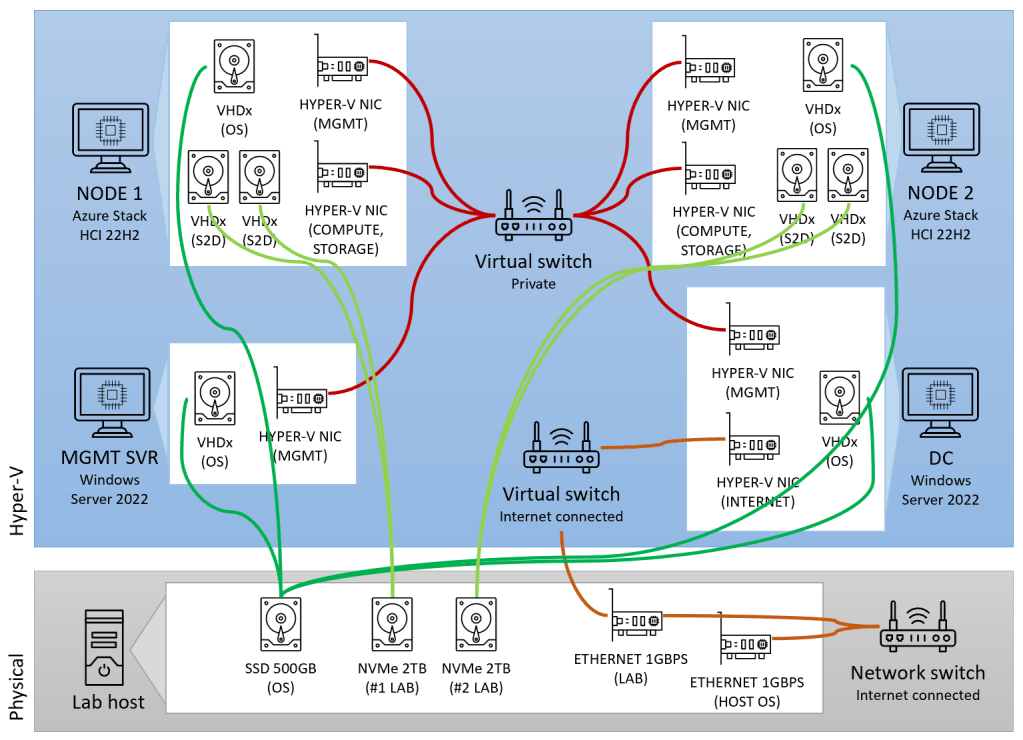
A few things to note about our lab environment:
- The Domain controller (DC) VM 🖥️ connects to both an internet-connected switch and a private network switch, and all the other VMs connect to only the private network switch (The DC provides DHCP, DNS, internet routing for all the other VMs).
- The Management server VM 🖥️ already has Windows Admin Center installed (and later we’ll install some other management tools).
- The two Azure Stack HCI node VMs 🖥️🖥️ aren’t yet clustered or registered (we’ll do that in steps 2 and 3 below).
~
1.2 Prerequisites
Microsoft has an excellent set of prerequisite documentation for creating an Azure Stack HCI cluster. Immediately below is a summary of prereq topics (I’ve cross-referenced the topics to Microsoft’s documentation as ms1 to ms9), and below that we examine the topics in more detail.
| 📑 1. Basic prerequisites [ms1] | 🚩 Local admin on each server 🚩 All servers in same time zone 🚩 WAC and DC not on same system 🚩 DC not on HCI cluster or a cluster node 🚩 Admin permissions on WAC server 🚩 WAC server joined to same AD domain |
| 📑 2. System Requirements [ms2] | 📃Azure [ms2.1] 📃Server [ms2.2] 📃Storage [ms2.3] 📃Networking [ms2.4] 📃SDN [ms2.5] 📃Active Directory [ms2.6] 📃Windows Admin Center [ms2.7] |
| 📑 3. Physical network requirements [ms3] | 📃 Network switches [ms3.1] 📃 Network traffic and architecture [ms3.2] |
| 📑 4. Host network requirements [ms4] | 📃 Network traffic types [ms4.1] 📃 Network adapter capabilities [ms4.2] 📃 Storage traffic models [ms4.3] |
| 📑 5. Firewall requirements [ms5] | 📃 Outbound endpoints and URLs [ms5.1] 📃 Requirements for addt’l services [ms5.2] 📃 Firewall internal rules and ports [ms5.3] |
| 📑 6. Network reference patterns [ms6] | 📃 2-node deployment patterns [ms6.1] 📃 Single-server deployment pattern [ms6.2] |
| 📑 7. Network intent [ms1],[ms1.2] | 🚩 Configure with Network ATC [ms1.2] or manually |
| 📑 8. Azure Stack HCI OS deployment [ms1], [ms1.3] | 📃 Deploy on 2 or more nodes [ms1.3] 📃 Deploy on single server [ms1.4] |
Below we’ll walk through these prerequisites and see how they apply to our lab.
~
1.2.1 📑Basic prerequisites [ms1]
| Microsoft suggests… | Our lab has… |
| 🚩 Local admin on each server 🚩 All servers in same time zone 🚩 WAC and DC not on same system 🚩 DC not on HCI cluster or a cluster node 🚩 Admin permissions on WAC server 🚩 WAC server joined to same AD domain | ✅ Domain admin access to each server ✅ Domain all in one time zone ✅ Separate domain controller VM ✅ DC VM not on HCI cluster ✅ Domain admin access to WAC server ✅ WAC server joined to domain |
~
1.2.2 📑System requirements [ms2]
| Microsoft suggests… | Our lab has… |
| 📃Azure [ms2.1] : 🚩 Azure user has active Azure subscription 🚩 Azure user has required Azure permissions 🚩 Access to a supported Azure region | ✅ Pay-as-you-go subscription ✅ Azure user is Security Administrator ✅ Using the [East US] Azure region |
| 📃 Server [ms2.2] : 🚩 2 or more servers 🚩 Identical node hardware 🚩 At least 32 GB RAM per node 🚩 Virtualization support on each node | ✅ 2 servers (VMs) ✅ Identical (virtual) hardware ✅ 32 GB RAM on each VM ✅ Nested virtualization on the lab host |
| 📃 Storage [ms2.3] : 🚩 Same number and type of drives 🚩 Dedicated log storage | ✅ 2 vhdx drives on each node ⚠️ I don’t have dedicated log storage*1 |
| 📃 Networking [ms2.4] : 🚩 Network adapter available for management 🚩 Physical switch configured for desired VLANs | ✅ 2 virtual network adapters per VM ⚠️ Virtual switch set to private network*2 |
| 📃 SDN [ms2.5] | ⚠️ I’m not using SDN*1 |
| 🚩 Active directory in environment [ms2.6] | ✅ Dedicated domain controller VM |
| 📃 Windows Admin Center [ms2.7] : 🚩 Latest version of WAC 🚩 WAC and DC not on same system 🚩 Admin permissions on WAC server 🚩 WAC server joined to same AD domain | ✅ Latest version of WAC installed ✅ Separate WAC management server ✅ Domain admin creds for WAC server ✅ All servers in same domain |
(*1 not best practice, but these choices won’t impact the lab)
(*2 not supported for production workloads, but this won’t impact the lab)
~
1.2.3 📑Physical network requirements [ms3]
| Microsoft suggests… | Our lab has… |
| 📃 Network switches [ms3.1] : 🚩 Using supported network switch hardware 🚩 Network switch(es) meet requirements of role | ⚠️ Hyper-V virtual switch*3 ⚠️ Hyper-V virtual switch*3 |
| 📃 Network traffic and architecture [ms3.2] : 🚩 Decide on switched or switchless model for storage traffic (east/west) | ✅ Using a switch for storage traffic (east/west) |
(*3 not supported for production workloads, but this won’t impact the lab)
~
1.2.4 📑Host network requirements [ms4]
| Microsoft suggests… | Our lab has… |
| 📃 Network traffic types [ms4.1] : 🚩 Network adapter(s) support allocated traffic type(s) | ⚠️ Hyper-V virtual network adapters*4 |
| 📃 Network adapter capabilities [ms4.2] : 🚩 Decide if using Dynamic VMMQ 🚩 Decide if using RDMA 🚩 Decide if using SET | ⚠️ I’m not using Dynamic VMMQ*5 ⚠️ I’m not using RDMA*5 ⚠️ I’m not using SET*5 |
| 📃 Storage traffic models [ms4.3] : 🚩 Using VLANs and subnets to separate storage traffic 🚩 Adequate bandwidth for SMB Multichannel | ⚠️ I’m not separating traffic*5 ⚠️ I’m only using one switch*5 |
(*4 not supported for production workloads, but this won’t impact the lab)
(*5 not best practice, but these choices won’t impact the lab)
~
1.2.5 📑Firewall requirements [ms5]
| Microsoft suggests… | Our lab has… |
| 📃 Outbound endpoints and URLs [ms5.1] : 🚩Allow-list firewall URLs 🚩Optionally allow-list recommended URLs | ⚠️ The lab doesn’t have a dedicated firewall*6 |
| 📃 Requirements for addt’l services [ms5.2] : 🚩Firewall configurations for other Azure services 🚩Firewall configurations for certain MS services and features | ⚠️ The lab doesn’t have a dedicated firewall*6 |
| 📃 Firewall internal rules and ports [ms5.3] : 🚩Firewall configurations for required management features 🚩Decide if using a proxy server 🚩Microsoft Defender firewall configuration | ⚠️ The lab doesn’t have a dedicated firewall*6 ✅ No proxy server ✅ No MS Defender config needed |
(*6 not best practice, but these choices won’t impact the lab)
~
1.2.6 📑Network reference patterns [ms6]
Before looking at network reference patterns, let’s refresh our memory about how we configured the network when setting up the lab:
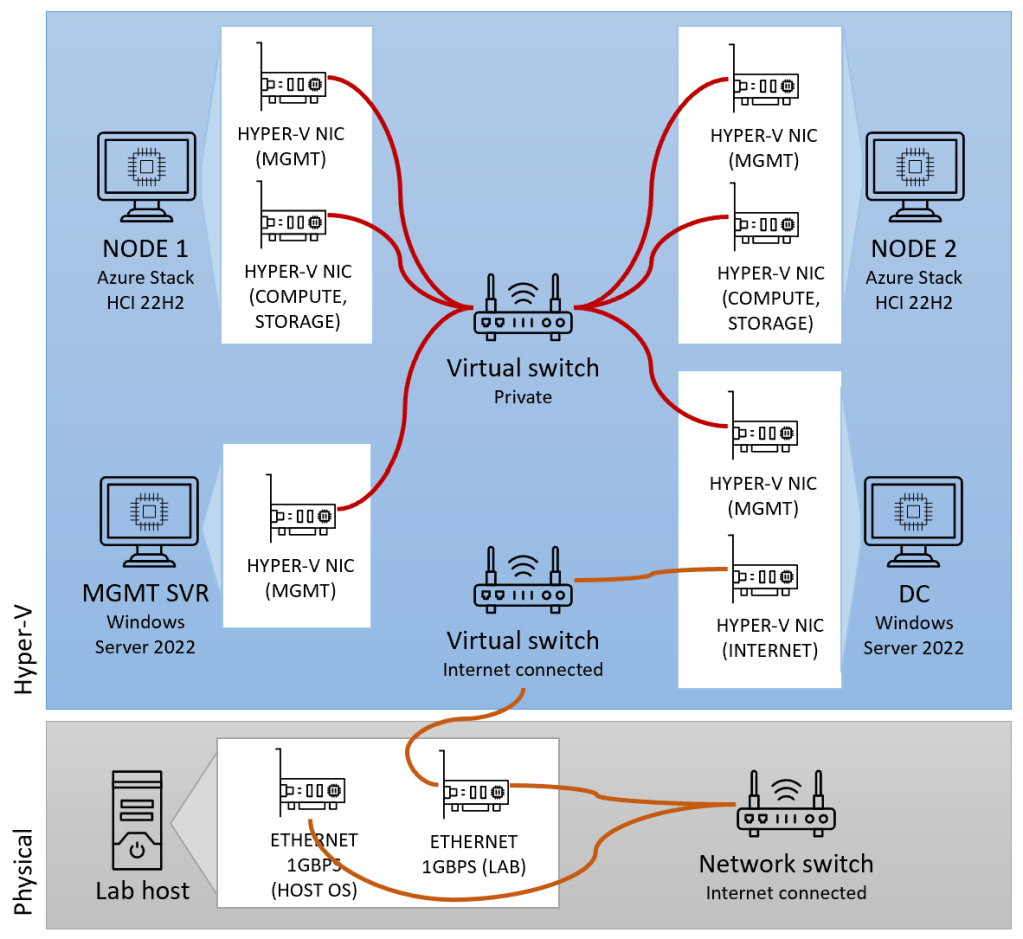
Some things to note about this configuration:
- The storage model is switched (versus switchless), since storage traffic between nodes travels across a switch.
- Network traffic is non-converged, since management traffic uses a different network card than storage and compute traffic.
- There is a single top-of-rack (TOR) switch between the nodes.
Microsoft supplies some example network reference patterns below, none of which exactly fit our configuration, but that’s okay – our permutation still meets our lab’s needs.
| Microsoft suggests… | Our lab has… |
| 📃 2-node deployment patterns [ms6.1] | ✅ A storage switched, non-converged, single TOR switch pattern |
| 📃 Single-server deployment pattern [ms6.2] | ✅ N/A, not a single-server cluster |
~
1.2.7 📑Network intent [ms1],[ms1.2]
| Microsoft suggests… | Our lab has… |
| 🚩 Configure with Network ATC [ms1.2] or manually | ⚠️ Configuring the network manually (in the WAC create cluster wizard)*7 |
(*7 not best practice, but this choice won’t impact the lab)
~
1.2.8 📑Azure Stack HCI OS deployment [ms1], [ms1.3]
| Microsoft suggests… | Our lab has… |
| 📃 Deploy on 2 or more nodes [ms1.3] | ✅ OS already deployed on 2 nodes |
| 📃 Deploy on single server [ms1.4] | ✅ N/A, not a single-server cluster |
~
After reviewing prerequisites, it looks like we are in good shape! 🎉
Let’s continue to the Create Cluster wizard.
~
2. Create cluster wizard
Let’s create a cluster! 🙌 For this step, we’ll follow along Microsoft’s create cluster wizard with Windows Admin Center documentation. (The WAC wizard is pretty much self-explanatory, so we’ll spend most of the time there).
The wizard has five major sections:
1️⃣ Get started
2️⃣ Networking
3️⃣ Clustering
4️⃣ Storage
5️⃣ SDN
Let’s walk through them now.
2.1 – 1️⃣ Get started
| Wizard part… | My notes… |
| 1.2 Add servers | I added my two HCI node VMs (AzSHCI1.corp.contoso.com and AzSHCI2.corp.contoso.com) |
| 1.6 Install hardware updates | I skipped this step, since all the hardware is virtual and there aren’t any vendor updates to install |
| Network ATC | I wasn’t offered the option of using network ATC in the wizard – perhaps because my lab setup doesn’t meet the prerequisites. (That’s fine for this lab) |
2.2 – 2️⃣ Networking
| Wizard part… | My notes… |
| 2.2 Select management adapters | I chose one physical network adapter for management, and selected “Adapter #2” on each node for the management network |
| 2.4 RDMA | I skipped RDMA, since I’m not using it in the lab |
2.3 – 3️⃣ Clustering
| Wizard part… | My notes… |
| 3.1 Validate cluster | I got a warning about DHCP status differing between the node and the cluster network, but I moved on (more on this later) |
| 3.2 Create cluster | I named my cluster and chose a fixed IP address (172.16.1.3) for my cluster |
2.4 – 4️⃣ Storage
Since I hadn’t yet created any vhdx’s for my cluster storage in my lab, I first went back in on the host server and added two vhdx drives to each Azure Stack HCI VM (and saved them on my dedicated NVMe storage in my lab host). I configured as dynamic, 600 GB each.
| Wizard part… | My notes… |
| 4.1 Clean drives | I skipped this step |
| 4.2 Check drives | My storage vhdx drives showed up as expected (the ones I just created above) |
2.5 – 5️⃣ SDN
| SDN | I skipped this step in the wizard, since I’m not going to use SDN. |
~
We’re now at the end of the wizard! You should see this message:
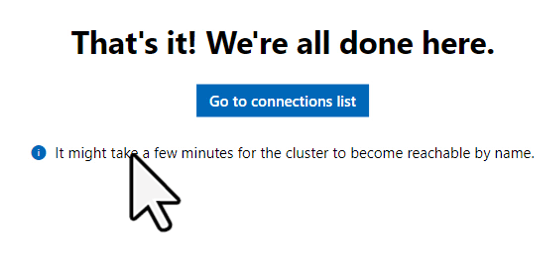
Woohoo, the cluster was created!
Now we can use Windows Admin Center to connect to, and view properties and settings of the cluster. To do that, I pulled up my management server VM, opened Windows Admin Center, and added the new cluster (using the name I specified in step 3.2 of the wizard above).
~
3. Register WAC, register cluster, add cluster witness
Now that the Azure Stack HCI cluster has been created, let’s register it with Azure and create a cluster witness. While technically you don’t need to do these things yet to start using your HCI cluster (you could create a guest VM right now if you wanted to!), I’m going to do these steps now, so we can do some more interesting things later with our lab (like installing Arc Resource Bridge or Azure Kubernetes Service, to name a few).
Here are the steps I’m going to run in this section:
- Register my Windows Admin Center 💻 instance with Azure
- Register my HCI cluster 🖥️ with Azure
- Add a cloud-based witness 🌩️ to my HCI cluster
3.1 Register Windows Admin Center 💻
I followed Microsoft’s Register Windows Admin Center with Azure documentation and didn’t have any notable hiccups or deviations to report. However, since I’m using my personal Azure account with a single AAD tenant, a single subscription, and I’m a global administrator, that likely made things smoother. A few things to consider if you are registering in an environment with more complexity:
- If your Azure account has access to more than one AAD tenant, make sure you use the same tenant for both WAC registration and HCI cluster registration (section 3.2 below).
- If you are not a global administrator for your Azure AD tenant, you’ll likely need help from an administrator in your organization to register your instance of WAC. Review the permission section of the documentation for further advice.
3.2 Register HCI cluster 🖥️
To register my cluster, I followed Microsoft’s Register Azure Stack HCI with Azure guide, and followed the Windows Admin Center steps. This was also a smooth registration for me, again likely because my Azure account has a single AAD tenant, a single subscription, and I’m a global administrator. Below I’ve outlined steps to consider during cluster registration, with my notes.
| Region availability | Only a subset of regions support Azure Stack HCI (and even less support Arc Resource Bridge), so I’m choosing a region that supports both (I’m using East US). |
| Permissions needed to register | I’m a global administrator in my AAD tenant, but if you aren’t, review this section and get help from an administrator in your org. |
| Pre-checks | These checks didn’t apply to my Azure environment, but it’s worth reviewing if you are a member of a more complex/large org. |
| Register with Windows Admin Center | I selected the same tenant/subscription that I used to register Windows Admin Center, and I used a region that supports Arc Resource Bridge so I can install that later. |
| View registration status with PowerShell | A quick way to check your registration status is with the PowerShell command ‘Get-AzureStackHCI’ (first ‘Install-Module -Name Az.StackHCI’) |
3.3 Add cluster witness 🌩️
While the lack of a cluster witness won’t prevent your cluster from operating, it’s required by Microsoft if you have 2 nodes, and highly recommended if you have 3 nodes.
The reason for this is to prevent a split-brain scenario where, if nodes become isolated from each other, more than one node or subset takes on the primary workload role. This could cause numerous issues during (i.e. workloads writing to the same disk) or after (i.e. data duplication or drift that needs reconciling) the time the cluster is split apart and then is joined back together.
I followed Microsoft’s documentation to set up a cluster witness, and I didn’t have any hiccups, other than some out-of-date references in the process to create an Azure Storage account. I’ve noted the differences I observed below:
- On the ‘Storage accounts’ page:
- The ‘Create’ action button supersedes the previously-named ‘New’ action button
- On the ‘Create a storage account’ page:
- The ‘Region’ field supersedes the previously-named ‘Location’ field
- The ‘Redundancy’ field supersedes the previously-named ‘Replication’ field
- I accepted the defaults for the tabs not referenced in documentation (Advanced, Networking, Data protection, Encryption, Tags)
- On the ‘Storage account’ detail page:
- ‘Access keys’ is now under the ‘Security + Networking’ group, not the ‘Settings’ group
- ‘Show keys’ is no longer global for all keys on a page, instead there is a ‘Show key’ button to the right of each key.
~
4. Validate cluster
Now that we’ve created a cluster, we can run one or more validation steps to ensure the cluster is working correctly, so we won’t have missteps or issues down the road when applying additional features or workloads.
While there are surely many different ways to validate an Azure Stack HCI cluster, Microsoft has provided this documentation to validate an Azure Stack HCI cluster, with mainly two sections:
- Validate-DCB tool
- Validate cluster via Windows Admin Center
4.1 Validate-DCB tool
Microsoft’s Validate-DCB tool is an in-depth network validation routine that will be a little bit overkill for our lab, but is still a great tool to help us familiarize ourselves with cluster network concepts, and with our cluster’s network resources.
- Note: When following instructions to install Validate-DCB, I experienced an issue with conflicting versions of the ‘Pester’ dependency, which I resolved by adding the flag ‘-SkipPublisherCheck’ to the Install-Module command.
When Validate-DCB fires up, you will see a Wizard dialog pop up, with the sections outlined below. My notes and observations are on right.
| Cluster and Nodes | I entered the name of my cluster and clicked ‘Resolve’. This triggered my nodes to appear in the list below, after which I clicked ‘Next’ |
| Adapters – vSwitch | I selected ‘vSwitch Attached’ and then entered the ‘vSwitch Name’ found on my cluster nodes. To get this name, I added the Hyper-V client tools feature to my management server, then connected to a node and viewed Virtual Switch properties. |
| Adapters | For this I need both the ‘Adapter Name’ assigned to the network cards on each node, as well as the ‘Host vNIC Name’ assigned to the virtual ethernet adapter created when setting up the cluster network. You can find these either by looking in Failover Cluster Manager (which I installed by adding the feature) from the management server, or by looking at the Network properties of an HCI node in WAC. The names present are a little confusing since we have nested virtualization in our lab, so I mapped them out as below: Connect to either HCI node in WAC (i.e. AzSHCI1 or AzSHCI2 in my lab), then browse to the ‘Networks’ tool. 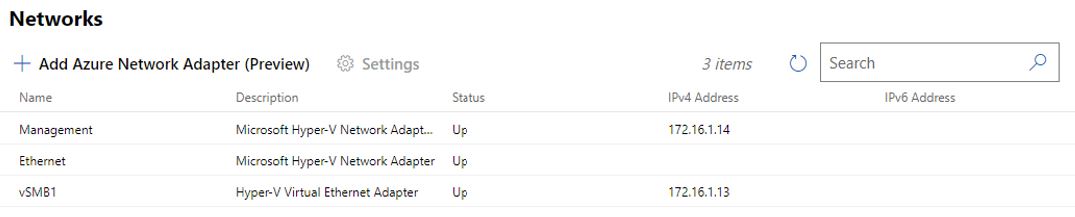 > Validate-DCB ‘Adapter Name’ maps to the ‘Name’ field in WAC of the ‘Microsoft Hyper-V Network Adapter’ that ISN’T the management adapter, i.e. in my lab is the one named ‘Ethernet’ > Validate-DCB ‘Host vNIC Name’ maps to the ‘Name’ field in WAC of the ‘Hyper-V Virtual Ethernet Adapter’, i.e. in my lab is named ‘vSMB1’ My completed ‘Adapters’ wizard step looks like this: 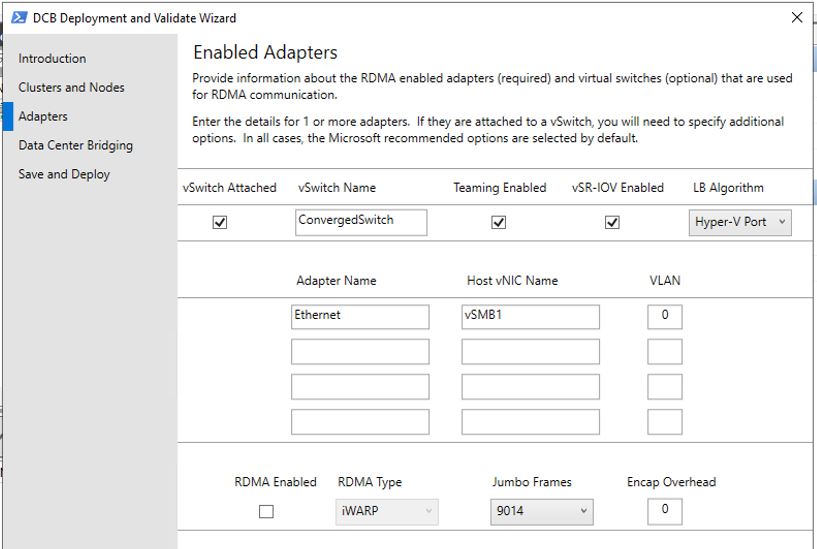 |
| Data Center bridging | I left ‘Enable DCB’ unchecked since we aren’t using Data Center Bridging. |
| Save and Deploy | On this step, I needed to provide a configuration file path to continue, so I found a location to save the file, then clicked ‘Export’. |
Once you get through the wizard steps, Validate-DCB starts running and outputs results to the screen.
While I didn’t dig into the results in detail at this point, I did see some interesting results, with lots of successful validation results, and some warnings referring to incorrect VLANID, NetQos config settings, etc. Since this lab has been set up with a simplified network, I’m going to save a deep dive for a later time.
4.2 Validate cluster via Windows Admin Center
I also ran the steps in documentation to Validate cluster with Windows Admin Center, and I found the experience similar to the cluster validation above in step 3.1.
My results came back with two warnings, about ‘DCHP status for network interface xxxx – vSMB1 differs from network Cluster Network 1 (where xxxx was both my HCI nodes, AzSHCI1 and AzSHCI2). When I dug in a little deeper, I found that the DCHP settings for ‘Cluster Network 1’ in Failover Cluster Manager were indeed different than the vSMB1 Hyper-V Virtual Ethernet Adapter on each node. Since I’m not sure if this is difference is intentional or not, I’m not going to make any changes at this point.
Conclusion
All right, you made it to the end! After setting up the lab in the previous article, and creating a cluster in this article, we now have a working Azure Stack HCI environment! From here we can branch out in many directions with the lab, so I recommend going back to my TOC post to see where you want to go next.
In my next article in this series, I’m going to set up Arc Resource Bridge on my cluster, so I can enable VM self service of guest VMs on my cluster from anywhere with the Azure Portal.

 Nick on HCI
Leave a reply to Step-by-step: create a self-contained Azure Stack HCI test lab (TOC) – Nick on HCI Cancel reply